Kube Inspector CLI
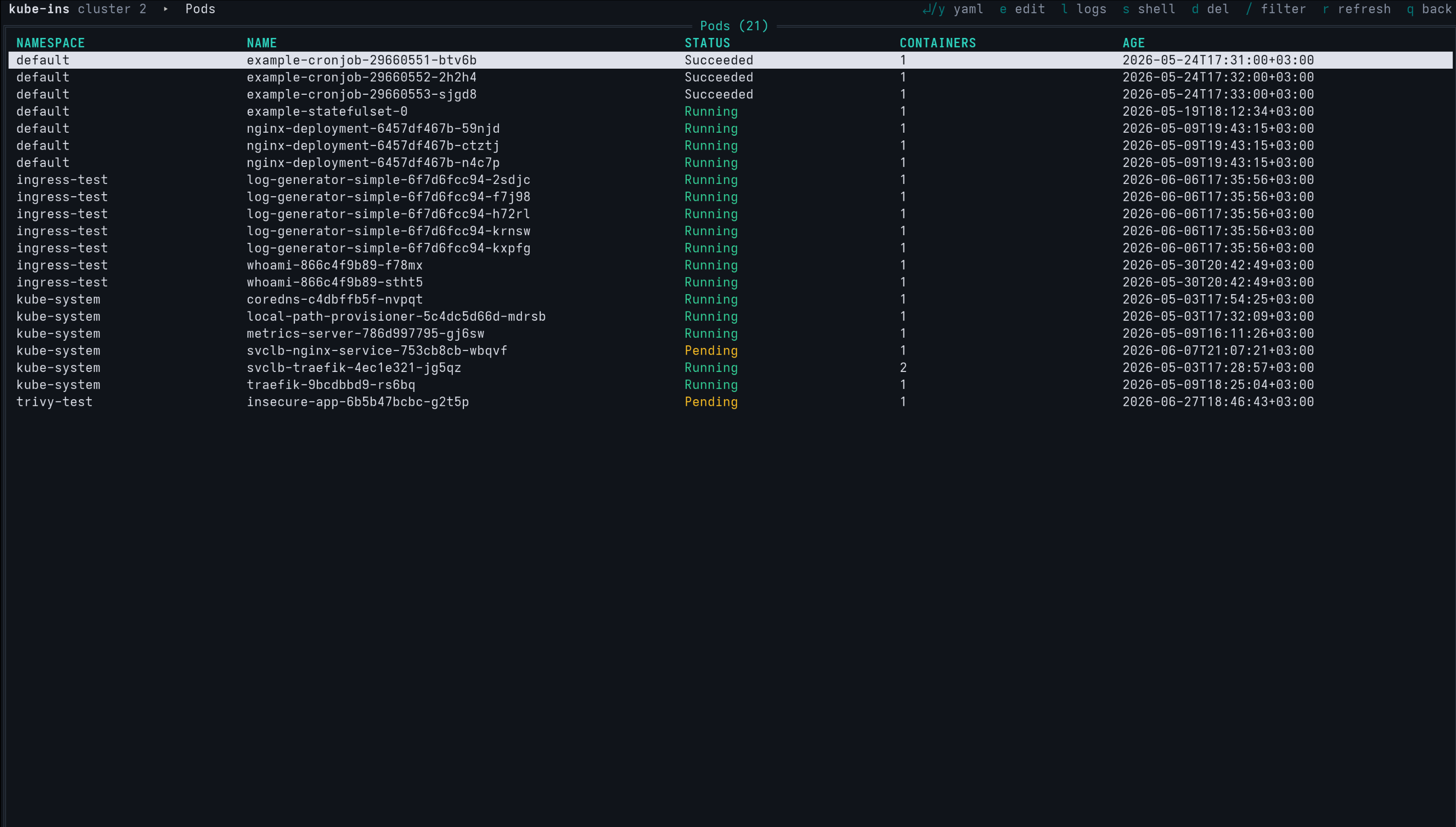
Kube Inspector CLI (kube-inspector-cli) is a terminal user interface for managing Kubernetes clusters. It brings the desktop app's workflow — a resource menu, sortable tables, YAML view/edit, deletes, live logs and pod exec — to a single, keyboard-driven terminal screen.
It is built on the same engine as the desktop app: every screen calls the same internal functions the GUI uses, so behaviour is identical. The difference is the front end — the CLI uses tview instead of a webview, so it has no WebKitGTK dependency and runs anywhere a terminal does (including over SSH).
Why a CLI?
- No webview — a single self-contained binary, ideal for servers, SSH sessions, and minimal environments where you can't (or don't want to) run a desktop GUI.
- Fast, keyboard-first — k9s-style single-key shortcuts for everything; no mouse required.
- Same data, same actions — reads the same cluster configs (
~/.kube-ins/) and performs the same operations as the desktop app.
What it can do
| Area | Capabilities |
|---|---|
| Clusters | List, add, delete and switch the active cluster |
| Workloads | Pods, Deployments, StatefulSets, ReplicaSets, DaemonSets, Jobs, CronJobs |
| Networking | Services, Ingresses, Ingress Classes, Endpoints, Network Policies |
| Config & Secrets | ConfigMaps, Secrets |
| Security (RBAC) | Service Accounts, Roles, Role Bindings |
| Storage | Persistent Volumes, Volume Claims, Storage Classes |
| Cluster | Nodes (incl. cordon / uncordon / drain), Namespaces, Events, Limit Ranges |
| Actions | View & edit YAML, delete resources, stream pod logs, exec into a pod |
Single focused screen
Unlike the desktop app, the CLI shows one screen at a time — there is no split view, no dockview, and no viewing multiple clusters side by side. Each panel is replaced by the next as you navigate.
Two ways to run it
- Standalone binary — install
kube-inspector-cliand run it directly in any terminal. See Installation. - CLI Mode inside the desktop app — in the desktop app, open Open ▸ CLI Mode to drop into a fullscreen terminal UI without leaving the window. Quitting the TUI returns you to the graphical workspace exactly where you left it.
Continue to Installation or jump to Usage & Shortcuts.